
Using Ferret
Sending to agents
Run your coding agent in the built-in terminal and hand it a review with one click. Claude Code and Codex are the usual examples, but any agent in the list below works, and so does a CLI you add yourself. You can also copy the instruction for an agent running elsewhere.
#Review findings
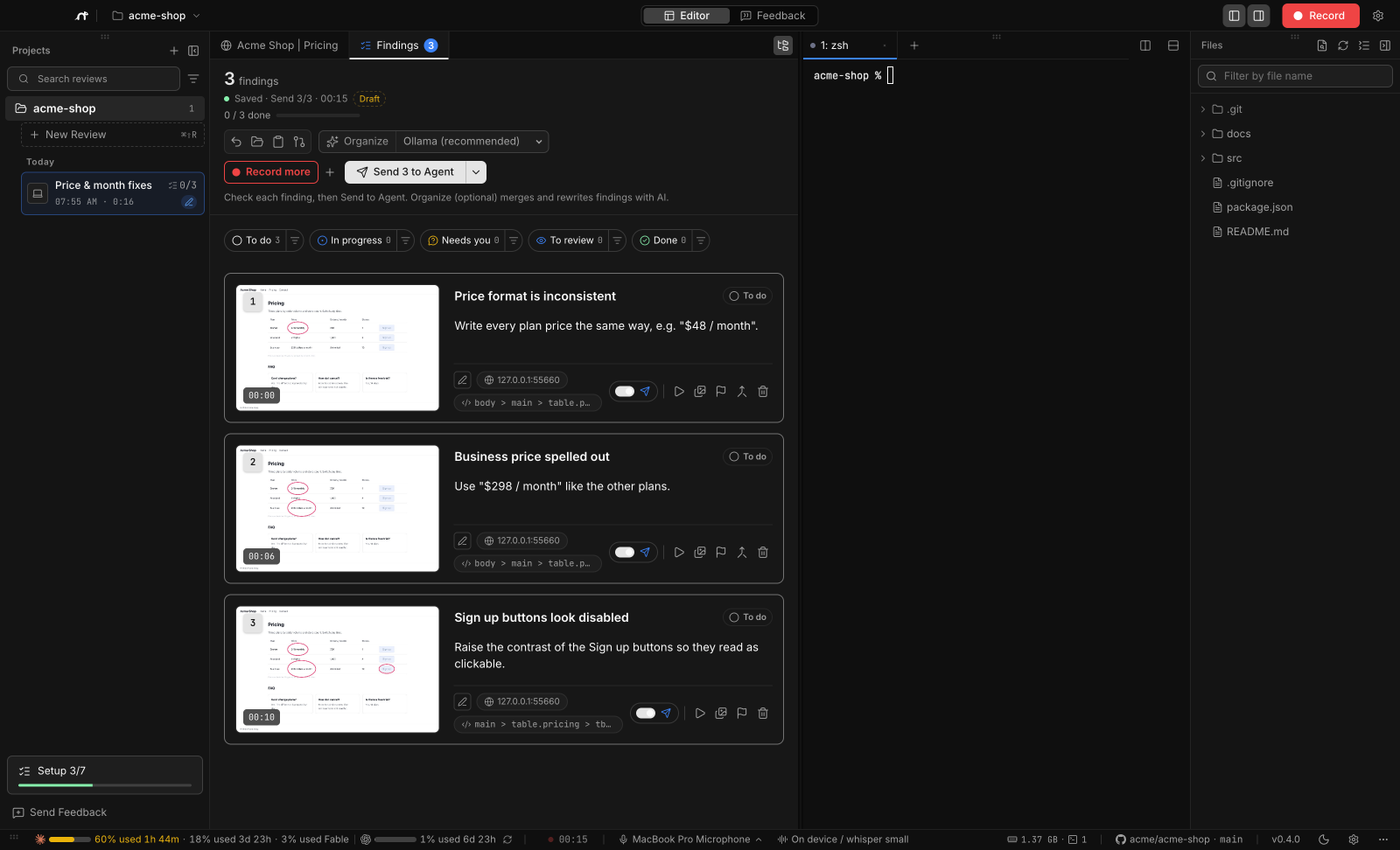
Each card in the Findings tab supports:
- Inline edit of the title and request
- Send / Don't send toggle
- Watch Recording (seeks to that time) and Replace Image (pick another frame)
- Confirm, Delete
Filter by progress shows or hides findings by status (for example Only the ones waiting for your review); Show all clears it.
To reorder findings, drag the handle to the left of a card's title, or select the handle and press ↑ / ↓. The numbers, feedback.md, and what you send to the agent follow the new order. While a filter is on, the order among the visible findings changes and hidden findings keep their place. When a review covers several pages or files, findings move within their own group. Sort findings in the header switches between Manual (drag order), Recording time, and Progress (not started first, done last); sorting by progress saves that order as the manual order.
The header has Undo, Open Folder, Copy for Agent, Organize, and Send to Agent. Speech that didn't become a finding is listed under Excluded speech, where Restore as Finding brings it back. Speech with no meaningful words never becomes a finding and is listed there too: phrases speech-to-text sometimes invents from silence, such as “Shh.” or “Thanks for watching”, fillers like “um”, and a bare “OK” or “yes” with no pen mark.
#Run agents in the built-in terminal
When a project opens, Ferret starts one terminal tab per agent in Settings → Agents → Start When a Project Opens, in the project folder. The default is Claude Code and Codex, started without permission prompts and with Claude in Chrome turned on:
claude --dangerously-skip-permissions --chrome
codex --dangerously-bypass-approvals-and-sandbox
Pick any agents from the supported list instead (they start in the order you pick them), or none.
Agents you open yourself start the same way. Ferret also marks the project folder as trusted for Claude Code and Codex, so they don't ask about the folder. To start them in their normal mode, where they ask before trusting a folder, editing files or running commands, turn off Settings → Agents → Start agents without permission prompts. Each agent's command and arguments are under Settings → Agents (Command) and in settings.json (agents.launch), and are used as you write them. Remove --chrome there to start Claude Code without Claude in Chrome. If the arguments already choose a permission mode (for example --permission-mode plan, or --sandbox workspace-write for Codex), the skip flag is not added.
If no agent is selected, a plain shell opens. The + menu opens New Terminal, launches any of your agents in a new tab, or jumps to Agent settings…. Its search box also finds tabs, saved URLs, and files.
Drop files into the terminal. Drag files, folders, or images from Finder (File Explorer on Windows, your file manager on Linux) onto a terminal pane, and their paths are typed into that pane, separated by spaces, without pressing Enter. This works the same while an agent is running: Claude Code reads a dropped image path as an image. Rows dragged from Files (several at once if you select them) work the same way: the path is relative to the project folder while the terminal is in it, and absolute after you cd elsewhere. Paths with spaces or other special characters are quoted for the shell: '…' in zsh and bash, "…" in Command Prompt, and '…' in PowerShell.
Tabs show the agent state: Running, Waiting for input, Done (unread), Idle. Done (unread) means the agent finished while you were looking at another tab; it turns into Idle once you open that tab. The sidebar marks each project the same way, so you can see it without switching projects: moving bars while an agent is running, a question mark while one is waiting for you, and a check mark when the agents there have finished and you have not opened the tab yet.
Notifications. Turn on Settings → Agents → Notify me when agents finish or need me to get a system notification when all agents in a project have finished, or when an agent is waiting for a permission or an answer. Nothing is shown for the tab you are looking at. Click the notification to switch to that project and open the tab.
Drag to split. Drag a tab, or a pane by its handle (shown once a tab is split), and drop it:
- on the outer quarter of a pane's edge: Split left / Split right / Split up / Split down
- on the center of a pane: Open as a tab (a pane leaves its split and becomes its own tab)
- on the thin band around the whole terminal area: Split the whole area left and so on (when there are 2 or more panes)
- on the tab bar: Place as a tab here
Processes keep running while you move them, and a tab left empty closes. Keyboard splits:
| Action | macOS | Windows / Linux |
|---|---|---|
| New Terminal | ⌘T | CtrlT |
| Split Right | ⌘D | CtrlShiftD |
| Split Down | ⌘⇧D | AltShiftD |
| Close Pane / Tab | ⌘W | CtrlW |
#Bring terminals back after a restart
When Ferret quits, it remembers the terminal tabs of every project: their order and splits, the folder each one was opened in, the agent and the account it ran with, and up to 2,000 lines of each screen. The next time Ferret starts, the tabs come back in the same order. The old text is shown first, then a dimmed line such as — Continued from last session (2026-10-05 14:30) —, and then a new shell starts in the same folder.
Agent tabs start again with their conversation: Claude Code with --continue and Codex with resume --last, which continue the most recent conversation in that folder. If several tabs run the same agent in the same folder with the same account, only the first one continues it and the others start fresh, so two tabs never continue the same conversation. If Claude Code has no conversation in that folder, or the project is on an SSH host, it starts normally.
Reopen a closed terminal. Terminal → Reopen Closed Terminal (⌘⇧T / CtrlShiftT while a terminal has focus) brings back the last tab or pane you closed in this project, with its text, and continues its agent the same way. The last 10 closed terminals are kept, also across restarts.
The history is saved as plain text, without colors, in Ferret's data folder (terminal-restore.json, readable only by you), never in the project. Login tabs opened from Add Account and one-off commands are not kept. To stop saving it, turn off Settings → Agents → Save terminal history and restore it; this also deletes what was saved. Delete saved history next to it deletes it at any time.
#Supported agents
Ferret is not tied to one agent. It recognizes the coding agents below: it can start them, detect them in a terminal for Send to Agent, and show whether they are installed. Settings → Agents lists them with Installed / Not found, an Install button where the vendor publishes a one-line installer, and the command and arguments for each.
- Claude Code (opens in a new tab)
claude - Codex (opens in a new tab)
codex - Antigravity (opens in a new tab)
agy - Cursor (opens in a new tab)
agent - GitHub Copilot (opens in a new tab)
copilot - Devin (opens in a new tab)
devin - OpenCode (opens in a new tab)
opencode - Amp (opens in a new tab)
amp - Droid (opens in a new tab)
droid - Kiro (opens in a new tab)
kiro-cli chat - Aider (opens in a new tab)
aider - Ante (opens in a new tab)
ante - Auggie (opens in a new tab)
auggie - Autohand Code (opens in a new tab)
autohand - BLACKBOX CLI (opens in a new tab)
blackbox - Cline (opens in a new tab)
cline - CodeBuddy (opens in a new tab)
codebuddy - Codebuff (opens in a new tab)
codebuff - Command Code (opens in a new tab)
command-code - Continue (opens in a new tab)
cn - Charm (Crush) (opens in a new tab)
crush - DeepSeek Harness (opens in a new tab)
dsh tui - ForgeCode (opens in a new tab)
forge - Freebuff (opens in a new tab)
freebuff - Gemini CLI (opens in a new tab)
gemini - Goose (opens in a new tab)
goose session - Grok (opens in a new tab)
grok - Hermes Agent (opens in a new tab)
hermes --tui - Junie CLI (opens in a new tab)
junie - Kilocode (opens in a new tab)
kilo - Kimi (opens in a new tab)
kimi - Letta Code (opens in a new tab)
letta - MiMo Code (opens in a new tab)
mimo - Mistral Vibe (opens in a new tab)
vibe - Muse (opens in a new tab)
muse - oh-my-pi (opens in a new tab)
omp - OpenClaude (opens in a new tab)
openclaude - OpenClaw (opens in a new tab)
openclaw chat - OpenHands CLI (opens in a new tab)
openhands - Pi (opens in a new tab)
pi - Prime Agent (opens in a new tab)
prime-agent - Qoder CLI (opens in a new tab)
qoder - Qwen Code (opens in a new tab)
qwen - Roo Code CLI (opens in a new tab)
roo - Rovo Dev (opens in a new tab)
acli rovodev run - Trae CLI (opens in a new tab)
traecli - ZCode (opens in a new tab)
zcode
Not in the list? Settings → Agents → Add Custom Agent registers any CLI or wrapper script (a name, a command, and optionally the process name used to recognize it), or add it to agents.customAgents in settings.json. Agents running outside Ferret can use Copy for Agent.
A few features depend on the agent and are limited to Claude Code and Codex for now:
- Accounts and usage: switching between several logins and the rate-limit meter in the footer.
- Organize: runs on your Claude Code or Codex login, or on an LLM API you configure.
#Send to Agent / Copy for Agent
- Click Send to Agent. By default (Auto (current tab or a running agent)) it goes to the agent in the current terminal tab, or to one that is running. Use the arrow next to the button (Choose the agent to send to) to pick a specific agent or tab.
- Ferret writes the instruction into the agent's input and submits it. Follow progress in the terminal.
If no agent is running, Ferret starts one first and sends as soon as it is ready. If the agent is busy working, the instruction is sent anyway and the agent reads it after its current task. Nothing is sent while the agent is waiting for a permission or an answer. Answer in the terminal first.
Copy for Agent puts the same instruction on the clipboard for an agent running elsewhere (another terminal, IDE, or app). Only findings toggled to Send are addressed. The video is never included.
#Acceptance check with a decision model
Turn this on and your coding agent checks its own work once against each finding before you look. Ferret does not judge anything itself: it gives the agent a decision model (any System One compatible API) and tells it, in feedback.md, how to use it. The decision model is the agent's own check, never a question for you: the agent does not ask you anything. You only compare BEFORE and AFTER and press OK or NG.
- The agent implements the findings.
- For each finding it captures an AFTER screenshot (same viewport and page state as the BEFORE still) and sends one request with the finding text, its "Done when" line and the BEFORE/AFTER images to the decision model.
- The decision model is called at most once per finding each time you send findings to the agent. There is no second judgement and no loop, so a model that never says "done" cannot keep the agent busy.
- The agent reads that one result. A finding passes when P(done) is at least the threshold (default 0.7) and the choice is
done, and goes to you as it is. Otherwise, if the result shows a clear gap the agent can fix, it may improve the fix one more time and capture AFTER again, without judging again. - Either way the agent sets the finding to To review with its AFTER, that one score and at most a one-line note. A finding that is out of scope, or a decision API that cannot be reached, does not stop the work: the finding goes to To review without a score.
- In Findings, each finding waiting for you shows BEFORE, AFTER and the score as material. OK marks it done; NG with a comment sends it back to the agent as a new request, where it is judged once again. The agent's final Done / Not done list in the terminal includes each finding's score and whether it improved the fix once more.
Set it up in Settings → Decision model and turn on Add the decision-model check to agent instructions. Presets only fill in the fields; every field stays editable, and Custom works with any compatible API.
| Preset | Request URL | Models | Key |
|---|---|---|---|
| Ollama (default) | http://localhost:11434/v1/systemone | clef-flash, clef (read images); nimble, tev1 (text only) | none, free |
| Cloudflare Workers AI | https://api.cloudflare.com/client/v4/accounts/{account_id}/ai/run/@cf/cloudflare/{model} | clef-flash, clef (read images) | CLOUDFLARE_API_TOKEN (Workers AI permission); account ID from the field or CLOUDFLARE_ACCOUNT_ID |
| Vercel AI Gateway | https://ai-gateway.vercel.sh/typesafe/v1/systemone | typesafe-ai/jev, convaiinnovations/laya (text only) | AI_GATEWAY_API_KEY |
| TypeSafe | https://api.typesafe.ai/v1/systemone | jev-latest, jev-preview (text only) | TYPESAFE_API_KEY |
| OpenAI | https://api.openai.com/v1/decisions | gpt-6-luna (reads images) | OPENAI_API_KEY |
| Custom | any full URL | any | Bearer, a custom header, or none; extra headers allowed |
The OpenAI preset uses OpenAI's Decisions API, which has its own request format (input, a list of questions, and answers). Agents still send the System One format to the relay: for this preset only, the relay converts the request (BEFORE/AFTER images become input_image data URLs) and converts the answers back, so the agent instructions stay the same. It uses your OpenAI API key, the same one as transcription. OpenAI charges input tokens only ($0.10 per 1M).
For Ollama, install it (0.35.1 or later for Clef / Clef Flash) and pull the model in a terminal. Ferret doesn't run installers:
ollama pull clef-flashKeys come from the key field (saved with your other API keys), an environment variable you name (the app's environment, the project .env, or ~/.ferret/.env), or apiKey in settings.json. Extra headers can read values from environment variables with ${VAR}.
How the key stays out of prompts
Agents never see your key. Ferret runs a local relay on 127.0.0.1 and gives each terminal FERRET_DECISION_URL (the relay, with a per-terminal token), FERRET_DECISION_MODEL and FERRET_DECISION_IMAGES (for one release, the old MOVIE_ADE_DECISION_* names are set too). The relay adds the key and headers and forwards the request unchanged, so prompts, feedback.md and agent transcripts contain no secrets. Each terminal's token allows 500 calls, 30 per minute, 20M tokens and $5 (when the cost is known), and each project allows 2,000 calls and $20 a day; when a limit is reached the relay answers 429 with the reason, and a new terminal tab gets a new token. Changing the decision-model settings ends the tokens of open terminals; terminals opened afterwards use the new settings.
Cloudflare differs from the System One docs in two ways (checked against the live API): images must be data URIs (data:image/jpeg;base64,…, otherwise 422 "image must be an embedded base64 data URI"), and the answer is wrapped as { "result": { … }, "success": true } (errors come back as { "success": false, "errors": [ … ] }). The Cloudflare preset sets Image encoding to data URI, agents get it as FERRET_DECISION_IMAGE_FORMAT, and the instructions tell them to read .result when present. The relay passes both directions through unchanged. To use a Global API Key instead of an API token, set Authentication to No key and add the headers X-Auth-Email: ${CLOUDFLARE_EMAIL} and X-Auth-Key: ${CLOUDFLARE_API_KEY}.
Only Clef and Clef Flash read images. With a text-only model, turn off Send BEFORE/AFTER images; the agent then judges from text alone, which is less reliable.
Ollama and large images
Ollama 0.35.0 limits /v1/systemone requests to 64 KiB, so requests with screenshots fail with HTTP 413. The instructions tell the agent to shrink both images to at most 1024px wide as JPEG (quality about 70). If it still gets 413, update Ollama to 0.35.1 or later, or switch to Cloudflare Workers AI.
#API usage in the footer
Decision calls go through the relay, so Ferret can count them. The footer item next to the agent usage meter shows the decision model and today's calls, tokens and cost (for example clef-flash · 42 calls · 18.3k tok). Click it for today, this month, per project, per model and per kind (decision / transcription / organize), and the last 50 calls.
Cost appears only when the API reports it (Vercel AI Gateway does) or when you set prices per 1M tokens in Settings → Decision model; otherwise it shows "—". Only metadata is logged (time, project, model, status, latency, size, image count, tokens, cost), never images, text or keys, in ~/.ferret/usage/decision-YYYY-MM.jsonl, one file per month.
#Customize the instruction
Edit Settings → Agents → Instructions for Agent. Two variables are expanded:
| Variable | Expands to |
|---|---|
{{path}} | Absolute path of feedback.md |
{{relpath}} | Path relative to the project: .ferret/reviews/<id>/feedback.md |
Leave it empty to use the default. The maximum length is 2000 characters, and Reset Instructions restores the default. Example:
Read {{relpath}} and the PNGs next to it. Fix only findings marked to send, one commit per finding, then run the tests.The setting is stored as agentPrompt in settings.json.
#Star Ferret on GitHub
After your first Send to Agent, and when you reach 3, 10, and 30 finished reviews, Ferret may ask you to star it on GitHub. It asks at most 3 times, at least 3 days apart, and never while recording. Star on GitHub stars it through your own gh login (or opens GitHub if gh isn't available), and Don't Ask Again stops the prompts. You can also star from Help → Star Ferret on GitHub.
#Service CLIs
Settings → Service CLIs lists the command-line tools of services you often use, so your agents can work with them. Installing them is optional: install only what you need, and Ferret works without any of them. Each row shows whether the tool is installed and its version, a link to the service's website, and buttons that run the official install or sign-in command for your OS in a new terminal tab:
- Git hosting: GitHub (
gh), GitLab (glab) - Hosting & deploy: Vercel, Netlify, Cloudflare (
wrangler), Firebase, Fly.io, Railway, Heroku - Cloud: AWS, Google Cloud (
gcloud), Azure (az) - Databases & backend: Supabase, Neon, PlanetScale, Turso
- Errors & monitoring: Sentry (
sentry-cli), Datadog (datadog-ci) - Payments: Stripe
- Containers: Docker,
kubectl - Mobile: Xcode Command Line Tools (macOS only), Android Platform Tools (
adb), Expo EAS, fastlane - Virtual machines: UTM (macOS only), Lima, Multipass
- AI & models: Ollama
Where a tool has no one-line official installer for your OS, Docs opens its install page instead. The list checks again on its own once an install finishes.