
Using Ferret
Recording
Record the built-in browser, an entire screen, another window, a desktop app, a game, or a phone simulator. Talk, circle, and type while you use the page.
#Choose what to record
In Feedback mode, click Choose recording target. The Recording Target dialog offers:
| Target | Captured |
|---|---|
| Built-in Browser (default) | Video, voice, and pen, plus URL, element selectors, clicks, and scrolls. No OS permission needed. |
| Entire Screen | Video, voice, and pen. No URL, element, or action log (this is noted in feedback.md). |
| Window | Same as above. Each window is listed with its app name. Ferret's own windows are not listed. |
| Phone | Same as above, listing only iOS Simulator and Android Emulator windows. |
Your choice is remembered. On macOS, screen and window capture require Screen Recording permission (how to grant it).
#Desktop apps, games, and mobile apps
To review a desktop app you are building (Electron, Tauri, or a native app), start it as you usually do in development, then choose its window under Window. Windows are listed with their app name, so a development build of an Electron app appears under Electron. Small windows and windows that stay on top of others are listed too; on macOS a window that stays on top is shown by its app name and title instead of a preview.
The choice follows the app. When you restart the app and its window comes back, the next recording uses the window with the same title, or the app's only window if the title changed.
For a mobile app, start iOS Simulator (Xcode, macOS) or Android Emulator (Android Studio), then choose the device under Phone. When the emulator runs inside Android Studio, open it in its own window (in Android Studio's settings, under Tools → Emulator, turn off launching in the Running Devices tool window) so it is listed.
Instead of a URL, feedback.md starts with what you recorded: the app and window title, or the device name and OS version for a simulator or emulator, plus the app in the foreground on Android. It also tells the agent to change that app's source code. Ferret reads the device details with xcrun simctl and adb (from ANDROID_HOME, ANDROID_SDK_ROOT, or the Android Studio SDK folder) when the recording starts. The images show only the chosen window, so say what you are pointing at while you talk.
Games work the same way. Choose the Unity, Unreal Engine, or Godot editor window with the game view showing, or the window of a game you built, including borderless windowed mode. For a game in exclusive full screen, choose its display under Entire Screen. When the window is one of these editors, feedback.md names the engine and asks the agent to change the game's code, scenes, or assets. Video is kept at up to 10 frames per second to keep files small, and the images for findings come from the same video, so they match the moment on the timeline.
A review target's Window to record matches the app name as well as the window title, so Simulator selects the iOS Simulator window whatever device it shows.
#Open several pages in tabs
The built-in browser has tabs: in Editor mode above the browser toolbar, in Feedback mode next to the URL field. Click New tab (⌘T / CtrlT) to open an empty tab, then type a URL, for example your webmail to fetch a sign-in code. Click a tab or press ⌘1 / Ctrl1 to ⌘9 / Ctrl9 or ⌃Tab / CtrlTab to switch, and click its × or press ⌘W / CtrlW to close it. ⌘T / CtrlT and ⌘W / CtrlW act on tabs while the page, the tabs, or the URL field has focus, and in Feedback mode; in the terminal they still open and close terminals. Links that open a new tab (target="_blank") and window.open without a size open in a new tab. Sign-in popups that ask for a size still open in their own window.
All tabs share the same logins and cookies, and you can copy in one tab and paste in another. Up to 20 tabs can be open. A page can open a tab only right after you click or type in it; otherwise the link opens in the same tab.
While you record the Built-in Browser, switching tabs records the tab you switch to as a separate video (see Record several windows at once), and the action log notes the switch and the page, so each finding stays tied to its page. The pen and the box work in every tab. An empty tab is recorded once a page loads in it.
Tabs belong to the project. Switching projects closes the open tabs and opens that project's tabs; switching back restores them, with their back and forward history while Ferret stays open (after a restart, the pages come back without that history). The visited pages listed under the review targets in Feedback mode are also kept per project. Logins and cookies are still shared by all projects.
If a site answers with a Cloudflare check (Verify you are human
), Ferret reloads it once with a user agent that says it is Electron, and keeps using that for the site until Ferret quits. Elsewhere the built-in browser presents itself like Chrome, so that sign-in pages such as Google's work.
#Import passwords and history from your browser
Bring sign-ins and history from your usual browser in Settings → Import from browsers.
- Passwords: export a password CSV with your browser's own feature, then click Import password CSV… and choose it. Chrome / Edge: Password Manager → Settings → Export passwords. Safari: File → Export → Passwords. Firefox: Passwords → ⋯ → Export Passwords. Ferret never reads a browser's encrypted password storage. The exported CSV holds your passwords in plain text, so delete it (and empty the Trash) once it is imported.
- On a page whose site has a saved password, a key button appears in the browser toolbar in Editor mode. Click it to fill in the username and password (pick the account when there are several). It fills only a page whose origin matches the saved one (the same scheme, host and port;
www.may differ) and only the top frame, not sign-in forms inside an iframe. - History: Find browsers lists Chrome, Edge, Brave, Chromium, Arc (macOS) and Safari (macOS) profiles on this computer, and Import history copies their history into the URL bar's suggestions. Imported history is shared by all projects and used only for suggestions. Reading Safari's history needs Full Disk Access for Ferret (System Settings → Privacy & Security).
Passwords are encrypted with Electron safeStorage in <userData>/browser-import/passwords.bin; the imported history is in browser-import/history.json. Delete all and Delete imported history remove them. Development builds and systems without safeStorage keep imported passwords only until Ferret quits.
#Browser extensions
Add Chrome extensions to the built-in browser in Settings → Browser extensions: Add unpacked folder… for a folder that contains manifest.json, or Import from Chrome… to copy one already installed in Chrome, Edge, Brave or Chromium. Extensions run only in the built-in browser, never in Ferret's own windows. They can read and change every page you open there and use its sign-ins, so add only extensions you trust.
Open an extension's popup with Extensions in the browser toolbar or the feedback toolbar. It opens at the top right of the page and closes when you click elsewhere or press Esc. When you record the Built-in Browser, what an extension changes inside the page and the open popup are both in the video and the images. Electron supports only part of the extension APIs: side panels, context menus, notifications, keyboard shortcuts, and tabs or windows opened by an extension don't work, and packed .crx files can't be loaded.
You can mark up popups too. While recording, clicking the toolbar doesn't close an extension's popup. With the pen or the box selected, or while Type feedback is on, clicking the page doesn't close it either, and Esc turns the tool off instead. Draw inside the popup: the marks appear in the video and the images at the popup's position. This works for popups opened after the recording or Type feedback started. A sign-in popup that a page opens in its own window (for example Sign in with Google) is recorded as a separate video while it is open. When it comes to the front, the pen and the box draw in it; clicking the page switches back. It still closes by itself after you sign in.
#Record several windows at once
One recording can capture up to four views at the same time: the built-in browser, desktop app windows, and screens. Each one is recorded to its own video until the recording stops, so a flow that moves between them, such as a web app that opens a desktop app and then goes back, is captured from start to end.
- While recording, click + (Record another window at the same time) in the recording bar and choose a window, a screen, or the built-in browser. Clicking a window target in the Review targets panel does the same.
- Click a chip in the recording bar to switch the view that is shown. The pen and the images for findings follow the view you show; the others keep recording in the background at up to 5 frames per second.
You can also wait for a window that isn't open yet. In Edit Project…, give a target a Window to record (an app name, part of the window title, a macOS bundle id such as com.example.MyApp, or the path of the app) and set When it opens while recording to Record it too or Record it and switch to it. In settings.json this is "watch": "record" or "watch": "switch". While recording, Ferret checks the window list once a second. The target shows as a dashed chip until its window opens, and it is recorded again if the app closes and opens again.
Every switch is written to the action log, so each finding knows which view it was about. Findings made while an app window was shown have no URL or element info, are grouped under that window in Findings and feedback.md, and the agent is told it was an app window. The extra videos are saved in the review folder under tracks/, with their start and end times in tracks.jsonl. On Windows and Linux only window titles are known, so the name is matched against the title. Waiting for a window isn't available on Linux under Wayland, where listing windows asks you to pick one every time; add the window with + after it opens instead.
#Start, pause, stop
- Open the page to review in the built-in browser.
- Record in the title bar, or ⌘⇧R / CtrlShiftR.
- Pause stops drawing and the timer. Resume continues.
- Stop or ⌘⇧R / CtrlShiftR again.
In the sidebar, each project has its own New Review (or the + on its row, New review in <name>). On another project, it switches to that project first and then starts recording. It won't start while another recording is running.
A recording is capped at 90 minutes. You get a warning near the limit, and the recording stops and saves automatically when it is reached.
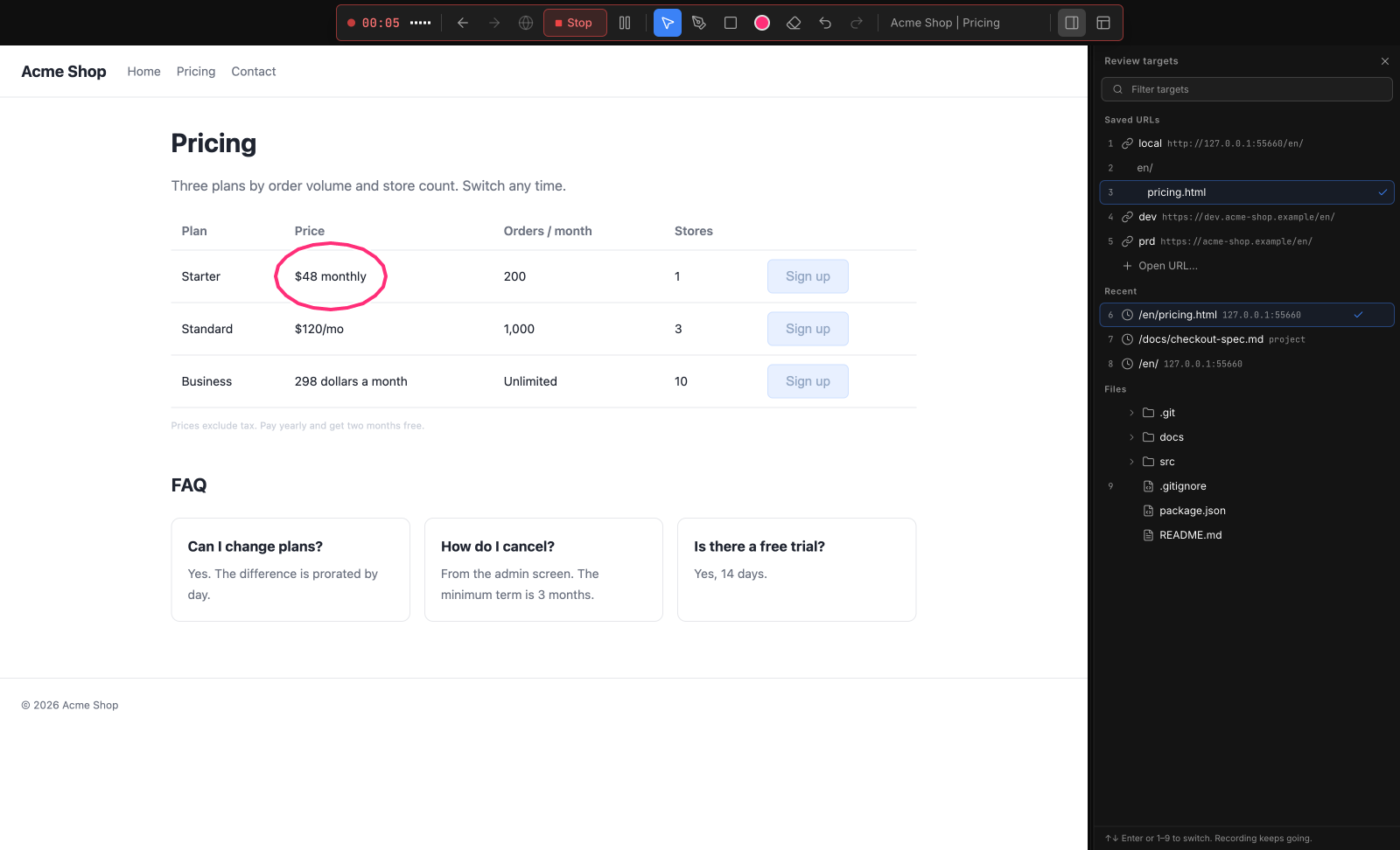
#Pen
- Pen: select it, or hold ⌥ / Alt to draw only while held (ignored while typing in a field).
- Clear: removes the current marks.
Circle the spot while you talk about it: the words and the marks end up in the same finding. The pen is available only while recording, and there is no text tool while recording: say it instead, or type it afterwards with Type feedback. Keys for the pen, the box, and colors are listed in Keyboard shortcuts.
#Type feedback instead of talking
When talking isn't convenient, type the finding instead. This works in Editor mode and in Feedback mode, while not recording.
- Click Type feedback: right of the record button at the top right, in the browser toolbar, or in the Feedback mode toolbar. In Editor mode it switches to the Browser tab first; in Feedback mode it turns the pen and the box off.
- Drag a box around the spot on the page, or click an element to box it.
- Type what should change. Enter adds it, ⇧Enter / ShiftEnter starts a new line, and Esc cancels the box. Enter while converting text with an input method doesn't add it.
Each one becomes a finding with an image of the page and the box, plus the URL and the boxed element, like a recorded finding. It is added to the review open in Findings, or to a new review if none is open. The browser stays in front, so you can add several in a row; Esc with no box open, or the button again, stops. It also works on a desktop app or simulator window shown in place of the browser, without the URL.
#Get feedback from anyone with a share link
To get feedback from people who don't use Ferret (a client, a designer, a teammate), send them a share link. They need no account and no app: they open the real page through the link, use it, and record feedback with the same tools as Ferret (pen, box, Type feedback and voice). Giving a name is optional.
- Open the page in the built-in browser (http or https only) and click Share in the browser toolbar. Ferret makes a link for that page (or reuses the one you already made for it) and copies it (
https://share.ferretade.dev/s/…). Send it however you like. - To change it, open Settings on the link in the Share window: the title, the pages it opens (up to 10, one URL per line), a memo, and a password. New share link makes another link with these settings from the start.
On the link, reviewers choose how to send feedback:
- Open the page and record: the page opens inside the link with the Ferret toolbar on top. They can click around and move between pages while they talk, draw and add text notes. Some sites refuse to load inside another page; reviewers then use screen sharing or open the page in a new tab.
- Share your screen and record: record another tab, a window, an app or the whole screen, for desktop and mobile apps too.
- Send a screen recording: upload a video, such as a phone screen recording (up to 10 minutes and 300 MB).
Everyone with the link sees the feedback that has arrived, so reviewers don't repeat each other. The page is in Japanese or English, following the reviewer's browser.
Recordings arrive in the same Share window with the sender's name, the time, the text notes and a thumbnail. Import turns one into findings the same way as Import Meeting: the voice is transcribed with your transcription settings, frames are taken where they drew, and each finding carries the sender's name. Decline the ones you don't want (Undo brings them back). From there, send findings to your agent and check BEFORE and AFTER as usual.
- Without a password, anyone with the link can open it and read the memo. If the memo holds sign-in details for a test account, turn on the password (Generate makes one) and send it separately; Copy password copies it again later. The password never reaches the server: reviewers' browsers prove they know it, and the memo is stored encrypted with it.
- A link and its recordings are deleted after 7 days. Delete removes them at once.
- One link takes up to 100 recordings (3 GB in total), and the server limits how often recordings and links can be sent. It does not store IP addresses.
- Share links are kept per project. The owner token that lets Ferret read and manage a link, the memo and the password are encrypted with Electron
safeStoragein<userData>/feedback-share/shares.bin. Development builds and systems withoutsafeStoragekeep them only until Ferret quits (the link itself keeps working until it expires). - The server's code is in
workers/feedback-sharein the repository.
#Import a meeting
Turn a meeting about your product into findings. Click Import Meeting under the open project in the sidebar, then add a recording, a transcript, or both:
- Recording: Choose video or audio… (MP4, M4V, MOV, WebM, MKV, M4A, MP3, WAV, OGG or AAC). It is copied into the new review's folder.
- Transcript: Open transcript file… (
.txt,.md,.vtt,.srtor.docx), or paste it. Ferret reads WebVTT and SRT captions (Zoom, Google Meet), transcripts with a time line followed byName: text
lines (Google Meet, Gemini),[00:12:34] Name: text
lines, aName 0:05
line followed by the text (Circleback, Otter), plainName: text
lines, or plain paragraphs. Ferret doesn't connect to these services; it only reads the text you give it.
Click Import. Without a transcript, Ferret transcribes the recording's audio with your Transcription setting (recordings up to 3 hours). Your Organize model then writes candidate findings from what was said. When the recording has video and the transcript has times, a frame from the moment of each remark becomes the finding's BEFORE image. Transcripts without times still work, without frames.
If the decision model is turned on, Ferret asks it once per candidate whether the meeting asked for a concrete change to the product, and, with an image model and a frame, whether the frame shows the screen being discussed. Each candidate shows Likely with a percentage; candidates below 50% start unchecked. These calls go from Ferret through the same local relay as your agents' checks, with its call and cost limits. Nothing is sent to your agent until you have checked the candidates: edit, uncheck or keep them, then send as usual.
#When marks disappear
Marks belong to the screen they were drawn on. They are recorded into the current finding, then cleared, when:
- the page navigates: a full load, or an SPA route change to a new path or query. A hash-only change keeps them.
- you scroll the page
- a spoken segment ends
#Microphone
The microphone is on by default. Toggle it from the footer (Turn microphone off / Turn microphone on) or with Record my voice in Settings. Choose a device under Microphone.
#See what is being transcribed
While you record, open the Transcript tab at the top of the right panel in feedback mode to read your words as text, with the time they were said (and who said it when the other side of a meeting is recorded). Text appears a few seconds after you pause, so you can check early that what you say is being captured. The top line shows Transcribing, how many parts are waiting, or why transcription stopped.
If transcription fails, no model or key is set, about 2 minutes of voice produce no text, or no sound reaches the microphone, Ferret warns you once and marks the right panel button, even when the tab is closed. Recording continues and the audio is kept. To hide the tab, turn off Show the live transcript while recording (right panel of feedback mode) in Settings → Transcription. The warnings still appear.
#Talk to your agent while recording
The right panel in feedback mode also has a Terminal tab. It is the same terminal as in Editor mode, not a new shell: the same tabs, the same running agents (for example Claude Code or Codex) and their history. Pick a tab at its top and type, for example to tell the agent that localhost is not running. Back in Editor mode, the terminal shows the same state. Recording the built-in browser or another app's window does not include the terminal.
#Record the other side of a meeting
To review a page together on a call, let Ferret record what you hear from your computer as well as your microphone. This works with any meeting app (Zoom, Google Meet, Microsoft Teams, and others), because Ferret records your computer's audio, not the app. The two are kept apart: your microphone is transcribed as Me and your computer's audio as Other, so each finding shows who asked for what. It also works with your microphone turned off.
- Join the call in your meeting app as usual. Keep using its own microphone and speaker settings.
- Turn on Record the other side too in Settings, or Also record other voices in the footer's microphone menu. It can't be changed while recording.
- Choose what to record: the Built-in Browser for the page under review, or Entire Screen / Window if you are looking at a shared screen.
- Record, then talk through the page with the others and circle the spots with the pen.
- Stop. Both sides are transcribed and turned into findings.
Let the other participants know you are recording. With a cloud transcription provider, their voices are sent to that provider too.
#System audio by OS
| OS | Requirement | Permission |
|---|---|---|
| macOS | macOS 14.2 or later. On earlier versions, only your microphone is recorded. | The first time you record the other side, macOS asks whether Ferret may record system audio. If you declined, turn on Ferret in System Settings → Privacy & Security → Screen & System Audio Recording, then quit and reopen Ferret. Your screen isn't recorded for this. |
| Windows | An enabled playback device (speakers or headphones) in Settings → System → Sound. | None. The default playback device is recorded. |
| Linux | PulseAudio, or PipeWire with pipewire-pulse (the default on most desktops). | None. The default output is recorded. |
If the other side can't be recorded, Ferret says why in a warning and keeps recording your microphone, the video, and the pen. See Troubleshooting.
#Tips for meetings
- Use headphones. With speakers, your microphone picks up the other side as well. Ferret turns on echo cancellation for the microphone when it records the other side, and drops lines that were heard by both, but headphones give the cleanest transcript.
- Everything your computer plays is recorded, including notification sounds and videos. Mute what you don't need during the review.
- Don't switch audio devices mid-recording. If the output device changes or is unplugged, recording the other side stops with a warning. Your microphone, the video, and the pen continue. Use Record more afterwards to capture the rest.